How This AI YouTube Channel Got 100K+ Subscribers with Just 41 Videos (100% Free Method)
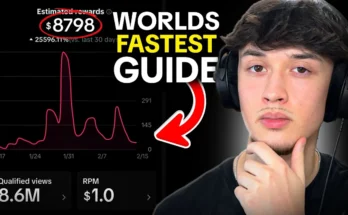
First of all, take a look at this YouTube channel. This guy uploaded only 41 videos and managed to gain more than 100,000 subscribers. The most shocking thing? These videos are not real.
Yes, these videos are completely AI-generated. But the crazy part is that when you watch them, they don’t look like AI at all. That’s exactly why these videos are going extremely viral right now. People are creating such videos and getting their channels monetized very quickly.
The best thing? Very few creators are making this type of content right now. In today’s guide, I’ll teach you how to create these viral AI videos 100% for free. So without wasting any time, let’s get started.
What Type of AI Videos Are Going Viral?
First, let me explain the video format.
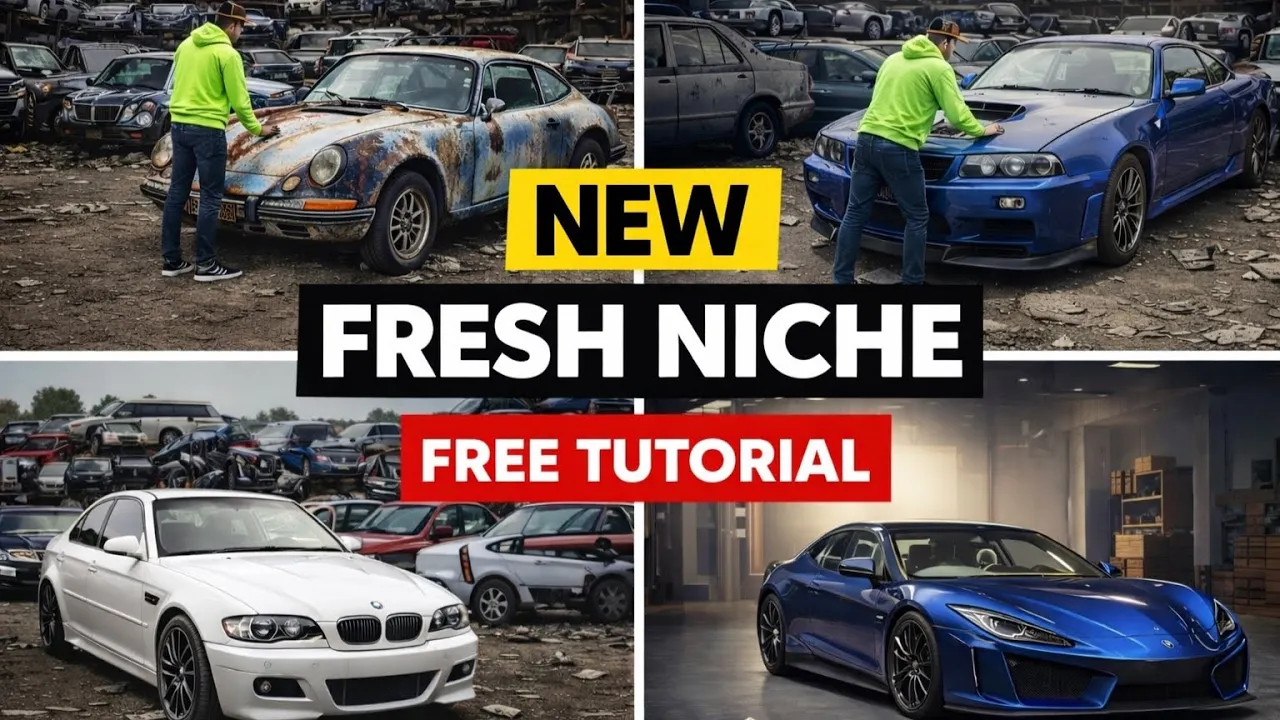
In this type of video, the story usually goes like this:
- A man finds an old, abandoned car
- He brings it to his garage
- He repairs and restores it step by step
These storytelling-style restoration videos look extremely realistic and people love watching them till the end. That’s why they perform so well on YouTube.
Step 1: Generate Viral Video Topics Using ChatGPT
First of all, open ChatGPT. Now paste the first prompt that I use. (All the prompts I mention here are availableAll the prompts I mention here are available in the video description.)
This first prompt is used to generate video topics. You just need to mention how many topics you want. For example, I type 10 topics and send it.
Now ChatGPT will start giving you topics. At the top, you’ll see the video idea, and below it, ChatGPT will explain why this topic can go viral.
According to our prompt, we now have 10 solid video topics.
Step 2: Create a Full Video Story Prompt
Next, copy the second prompt and paste it into ChatGPT.
After sending it, ChatGPT will ask you to paste a video topic. From the 10 topics you received earlier, copy the one you like the most. I personally liked one topic, so I simply copied it and pasted it here.
Now send it.
ChatGPT will now generate a complete video prompt from start to finish. It includes:
- Finding the old car
- Bringing it to the garage
- Repairing and restoring it step by step
Everything will be explained in sequence.
Step 3: Generate the Video Prompts in Parts
Now paste the third prompt and send it.
This prompt is used to generate the actual video creation prompts. Since ChatGPT cannot generate very long prompts in one go, it will provide them in parts.
After writing one part, ChatGPT will ask:
“Do you want to generate Part 2?”
Simply type “Part 2” and send it. After that, type “Part 3” and send it.
Initially, the prompts are very detailed, but later the detailing reduces. That’s why we’ll convert these prompts into a JSON format for better video quality.
Step 4: Convert Prompts into JSON Using Grok (GCK App)
Now open the GCK application (Grok).
Paste the fourth prompt there and simply send it. You don’t need to change anything.
Grok will reply with something like “Understood”.
Now go back to ChatGPT, copy the first video prompt, and paste it into Grok. Send it.
Grok will now convert your normal prompt into a detailed JSON prompt that is perfect for AI video generation.
You’ll notice how big and detailed the JSON prompt is. Copy this JSON prompt.
Step 5: Generate AI Videos Using Google Gemini
Now open Google and search for Google Business Gemini. Open the official website.
If you want to learn how to create unlimited AI videos without a student ID or credit card using VEO 3, you can check my detailed guide here:
After opening the website, log in using any Gmail account.
You’ll see a clean interface. Now paste the JSON prompt and click send.
Within a few seconds, the video will start generating in high quality.
Once the video is ready, click on it and select the Download option.
Step 6: Generate All Video Clips
Now repeat the same process:
- Copy the second prompt from ChatGPT
- Paste it into Grok to convert it into JSON
- Paste the JSON into Google Gemini
- Generate and download the video
Do this for all the parts until all video clips are generated.
Step 7: Simple Editing (No Voiceover Needed)
The best part about this content style is that:
- No voiceover is required
- No background music is needed
- No sound effects are required
Just combine all the generated clips in any basic video editor and export the final video.
Step 8: Create a High-CTR Thumbnail Using AI
For the thumbnail, go back to ChatGPT.
Paste the fifth prompt and send it. Now paste your video topic.
ChatGPT will generate a detailed thumbnail prompt.
Copy that prompt and go to Google. Search for an AI image generator and open a tool like:
Log in with Gmail, click on Enter Prompt, paste your thumbnail prompt, select the aspect ratio, and click Generate.
Within a few seconds, your thumbnail will be ready. Download the one you like the most.
Final Thoughts
Friends, by uploading these types of AI storytelling videos, you can grow your YouTube channel very easily. The competition is still low, and the demand is extremely high.
If you want the next video on a specific topic, make sure to comment below and let me know.
💰 Want to Make Money Online?
Join our WhatsApp Channel for proven tips on side hustles, passive income, affiliate marketing, and more!
🚀 Join Now & Start Earning!